 Printhawk
Multiple accounts
Updated
Run two shops, or keep a sandbox next to live? Printhawk keeps each as a separate account.
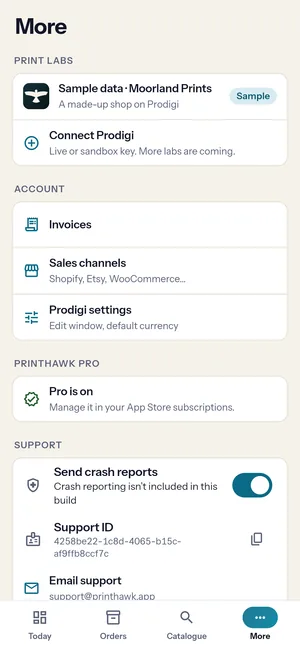
Steps: add an account
- Go to More › Add another account.
- On Free, the Pro paywall opens; with Pro, the Connect screen does.
- Paste the
live_orsandbox_key, give it a name and tap Connect. The new account becomes the current one.
Steps: switch, rename, read-only, disconnect
- In More, tap an account.
- Switch to this account makes it current; Today and Orders reload.
- Rename changes the name shown in the app.
- Read-only hides changes for that account (read-only mode).
- Disconnect this account removes its key from the phone.
Each account’s screen shows the lab, mode, account email and masked key. Connecting the same key twice replaces the earlier entry. See sandbox and live and Prodigi’s sandbox.
Questions
How many accounts can I connect?
One on Free. With Printhawk Pro you can add more, live and sandbox.
Do I see all accounts at once?
No. Printhawk shows one account at a time; switch between them in More.
Can I connect other print labs?
Not yet. Printhawk works with Prodigi only today.
What does disconnecting do?
It deletes that account's API key from the iPhone. Nothing changes in your Prodigi account.