 Printhawk
Your Prodigi API key
Updated
Prodigi’s Print API v5 uses one key per account, sent in the X-API-Key header. Printhawk needs that key to read your orders.
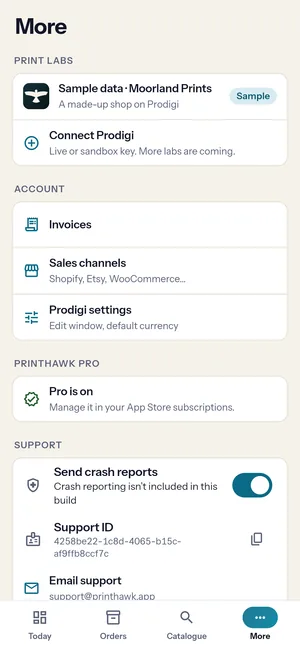
Steps: find and copy your key
- Sign in at dashboard.prodigi.com (or the sandbox dashboard for a test key).
- Open Settings › API.
- Copy the key. A v5 key starts with
live_orsandbox_. - Paste it in Printhawk’s Connect Prodigi screen (see connect Prodigi).
How Printhawk handles the key
- Checked first. The app rejects keys with spaces, keys that are too short and old
test_keys, then asks Prodigi to confirm the key withGET /merchant. - Stored on the phone. The key goes into the iPhone Keychain, set to this device only. Everything else (account name, mode, masked key) is kept separately.
- Shown masked. More and the account screen show it as, for example,
live_7c1e••••a90d. - Sent to one place. Only to
api.prodigi.com.
If your key changes
If you get a new key from Prodigi, disconnect the old account (More › tap the account › Disconnect this account) and connect again with the new key. If you restore an iPhone backup onto a new phone, the key doesn’t come with it, so Printhawk drops that account and you connect again.
Read more about the Prodigi API and Prodigi’s sandbox.
Questions
Where do I find my Prodigi API key?
In the Prodigi dashboard at dashboard.prodigi.com, under Settings › API. Sandbox keys are in the sandbox dashboard.
What is the difference between live_ and sandbox_ keys?
A live_ key works on your real account: orders are printed, shipped and charged. A sandbox_ key works on Prodigi's test environment, where orders are never printed or charged.
Can I see my full key in Printhawk later?
No. After connecting, the app only shows a masked version such as live_7c1e••••a90d, so you can tell keys apart without exposing them.
What happens if I disconnect?
The key is deleted from the iPhone. Nothing changes in your Prodigi account; your orders and settings are untouched.