 Printhawk
Connecting WooCommerce to Prodigi
Updated
Connect WooCommerce from the WooCommerce tile under Sales channels in the Prodigi dashboard, wait for Prodigi’s email, then switch fulfilment on for each product and add its Prodigi SKU and artwork. WooCommerce orders default to auto-select shipping, which uses the delivery option your customer chose at checkout.
Setting it up
- Build the products in WooCommerce. Prodigi imports existing store products; it doesn’t create them in WooCommerce for you.
- Connect. In the Prodigi dashboard, open Sales channels and click “Connect your WooCommerce store” on the WooCommerce tile.
- Wait for the email confirming the import. Prodigi says that takes a few minutes for most stores; if nothing arrives within an hour, disconnect and reconnect.
- Configure products: switch the purple fulfilment toggle on, choose the Prodigi product and size for each variation, and add artwork (or leave it blank for personalised items).
- Choose shipping: keep auto-select or fix a method per product.
Prodigi publishes a WooCommerce integration user guide on its WooCommerce page with screenshots of each step.
Auto-select shipping
WooCommerce is one of the platforms (with Wix, Squarespace, BigCommerce and Adobe Commerce) where Prodigi can read the shipping the customer chose. With auto-select, which is the default for these stores, offer budget, standard and express at checkout and Prodigi uses the matching service. Name your WooCommerce shipping options clearly so the mapping is obvious, and price them from Prodigi’s price sheets (see shipping costs). You can still fix one method per product instead.
WooCommerce or the API?
| WooCommerce integration | Print API | |
|---|---|---|
| Code needed | None | Yes |
| Orders sent | Automatically, for configured products | However you build it |
| Tracking back to the store | Automatic | Your code |
| Custom flows (approvals, per-order artwork) | Edit window plus manual steps | Full control |
Most shops should use the integration. The Print API suits stores with custom checkouts or personalised artwork generated per order.
Common problems
- Store domain changed: Prodigi says this can break the connection; delete the channel and reconnect.
- New products missing: they usually appear within minutes, up to an hour; check for a re-authorisation link on the Sales channels page.
- Edited products duplicated: a replaced product can import as new; configure the new one and turn off the old.
- Orders missing: check the channel status; see sync errors.
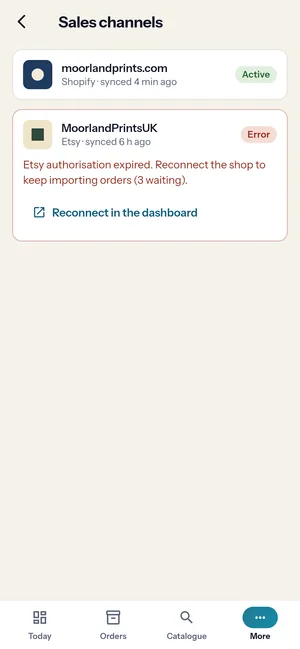
Branded inserts work with WooCommerce orders: assign a branding set to the channel (see packing slips and inserts). For choosing what to sell, see WooCommerce print on demand. Printhawk shows a WooCommerce store’s status alongside Etsy and Shopify, read-only.
Questions
Does Prodigi work with WooCommerce?
Yes. Prodigi lists WooCommerce among its ecommerce integrations. Connect it from the WooCommerce tile under Sales channels in the Prodigi dashboard.
Is there a Prodigi WordPress plug-in?
Prodigi's FAQ says it has no current plans for a WordPress plug-in. The WooCommerce connection is made from the Prodigi dashboard instead.
What is auto-select shipping?
An option for WooCommerce (and Wix, Squarespace, BigCommerce and Adobe Commerce) orders that uses the shipping option your customer picked at checkout. It is the default for WooCommerce.
Can I add branded packing slips to WooCommerce orders?
Yes. Assign a branding set to the WooCommerce channel in its settings; inserts are added where the lab supports them.
Sources
- Prodigi, WooCommerce integration (prodigi.com/woocommerce-print-on-demand) and Ecommerce integrations (prodigi.com/ecommerce-integrations), read 27 November 2026.
- Prodigi FAQ, Integrations (connecting a store, WordPress plug-in, shipping and auto-select, domain changes) and Packaging (prodigi.com/faq), read 27 November 2026.