 Printhawk
Cancel an order
Updated
Printhawk can cancel an order on your Prodigi account when Prodigi still allows it.
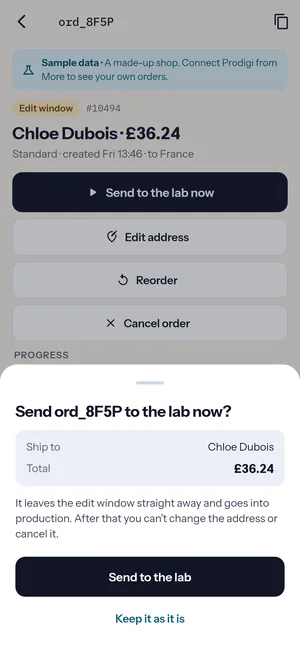
Steps
- Open the order and tap Cancel order.
- Pick or type a reason (optional, up to 200 characters) and tap Next.
- Read the sheet: ship-to, total, reason and the note that it can’t be undone.
- Tap Cancel order and confirm with Face ID.
- Printhawk shows “Order cancelled.”; the reason appears under Details as “Cancelled because”.
Rules
- Shown only when Prodigi lists
cancelin the order’s allowed actions. - Printhawk Pro; hidden in read-only mode.
- Tap Keep it as it is on the sheet to back out.
- If Prodigi refuses, Printhawk shows its message in “That didn’t go through”.
More: when a Prodigi order can be cancelled.
Questions
When can I cancel a Prodigi order?
Only while Prodigi allows it, typically before production starts, for example while it's in your edit window. Printhawk shows Cancel order only when Prodigi lists cancel among the order's allowed actions.
Do I have to give a reason?
No. The reason is optional and kept on the order for your records; quick picks include Customer changed their mind and Duplicate order.
Can I undo a cancellation?
No. To print it after all, place it again, for example with Reorder.
The order is already in production. What now?
Cancel won't be offered. Contact Prodigi support, or if something arrives wrong, report a problem once it's delivered.